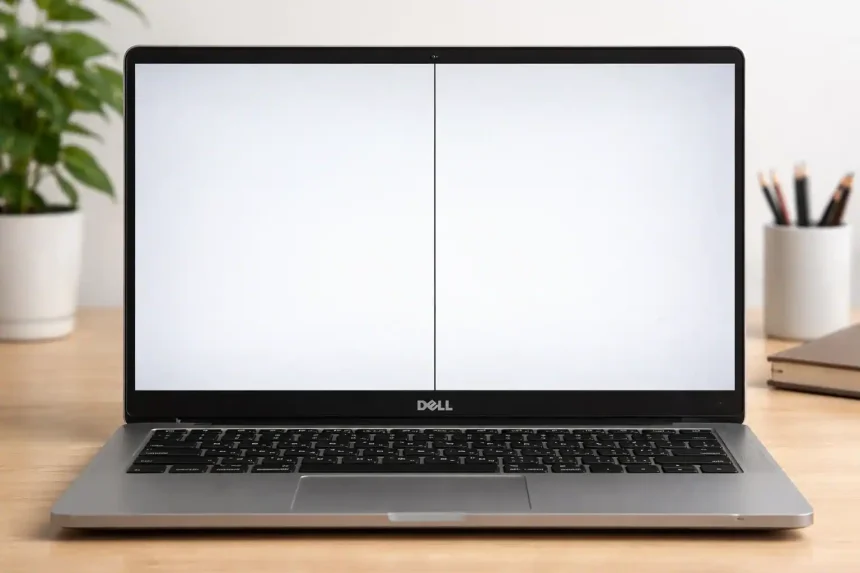
Seeing a stubborn black line across your Dell laptop display? Don’t panic. In most cases, you can pinpoint the cause in minutes and choose a sensible fix. I’ll walk you through fast tests, deeper diagnostics, budget‑smart repairs, and prevention so you don’t waste time (or money).
Understand the Symptom First
A vertical or horizontal black line usually traces back to one of three roots:
- Software/display pipeline glitch: Driver bugs, overlay conflicts, or corrupted settings.
- Cable/connector issue: A stressed eDP/LVDS cable or loose connector between the motherboard and the LCD.
- LCD panel fault: A failed driver IC, a dead pixel column/row, or damage from pressure or liquid.
Two-minute isolation checks
- Screenshot test: Take a screenshot (Win + Shift + S or PrtSc). View it on another device. If the line is in the screenshot, it’s software. If not, suspect hardware.
- External monitor test: Connect an external display via HDMI/USB‑C. If the line shows only on the built‑in screen, think cable or panel. If it appears on both, think GPU/driver.
Fast Fixes You Can Try Right Now
1) Reset the display stack
- Power cycle: Shut down, unplug, and hold Power for 15 seconds. Reboot.
- Restart graphics driver: Win + Ctrl + Shift + B.
- Toggle resolution/refresh: Settings > System > Display > Advanced display, change rate/resolution and revert.
2) Update or roll back graphics drivers
- Windows Update: Settings > Windows Update > Check for updates.
- Device Manager: Display adapters > your GPU > Update driver. If the issue began after an update, try Roll Back Driver.
- Vendor drivers: Install WHQL releases from Intel/AMD/NVIDIA for stability.
3) Clean boot to rule out conflicts
- Open System Configuration (msconfig) > Selective startup, then disable non‑Microsoft services. Reboot. If the line disappears, a third‑party overlay/app was to blame.
Dell Tools That Make Diagnosis Easier
Run the LCD BIST and ePSA diagnostics
- LCD BIST (Built‑In Self Test): Power off. Hold D and press Power to start the color cycling screen. If the line appears here, the panel/cable is implicated.
- ePSA/Pre‑boot diagnostics: Tap F12 at startup, choose Diagnostics. If you see the line in the pre‑boot test, Windows isn’t the cause.
- SupportAssist: In Windows, use SupportAssist to fetch Dell‑approved BIOS, GPU, and firmware updates for your exact model.
Inspect physical connections (if comfortable)
- Power off, disconnect AC, and remove the battery (if serviceable). Carefully reseat the display cable at the motherboard and at the panel.
- Inspect the cable where it passes through the hinges. Look for kinks, fraying, or pinch points.
- Check the lid/bezel for pressure spots or previous impacts.
Decide: Cable or Panel?
Signs of a cable problem (often cheaper)
- The line flickers, shifts, or changes with lid angle.
- You see brief static/snow, color shifts, or intermittent half‑screen dropout.
Signs of a panel fault (screen replacement)
- The line is perfectly straight and constant in thickness/position.
- Multiple fixed lines or a dark bar appear during boot logos, BIST, and BIOS.
Safe DIY Paths (When You’re Handy)
Try a pixel refresh for faint lines
- Use a full‑screen pixel‑flashing utility for 10–15 minutes. It can help if the fault is a stuck pixel band, but it won’t revive a failed driver IC or T‑CON.
Reseat or replace the eDP cable
- Identify your exact Dell model (e.g., Inspiron 15 35xx, XPS 13 93xx, Latitude 54xx) and order the matching cable. Route it gently through the hinge—no sharp bends.
- This is often the lowest‑cost hardware fix and frequently resolves intermittent lines.
Replace the LCD panel
- Match by the panel’s model number (found on the panel label). Ensure connector position, resolution, refresh rate, and mounting tabs match.
- FHD IPS panels are common and affordable; touch variants require a matching digitizer/glass assembly.
Professional Help and Warranty Options
Check Dell warranty or ProSupport
- If still under warranty, contact Dell. Manufacturing defects are commonly covered; impact or liquid damage is not.
Typical repair cost tiers (ballpark)
- Cable reseat/replace: low cost
- FHD non‑touch panel: moderate cost
- Touch, high‑refresh, or 4K panels: higher cost
If the repair quote nears 40–50% of your laptop’s current value, consider upgrading instead.
Prevent Recurrence
Handle and carry smarter
- Avoid lifting the laptop by the display corner. Use a sleeve and don’t compress the lid in tight bags.
Keep hinges and thermals in shape
- Don’t slam the lid. Service stiff/clicky hinges—they stress cables.
- Keep vents clean and update BIOS/graphics periodically to reduce display pipeline bugs.
FAQ
Is a single black vertical line always the panel?
Not necessarily. If the line responds to lid movement, the cable is the prime suspect. A rock‑steady line across BIOS, BIST, and Windows points to the panel.
Will a factory reset fix it?
Only if software is at fault. Exhaust driver updates, safe mode, and the external monitor test before resetting.
Can I keep using the laptop like this?
Yes, if the line is minor and stable. But hardware issues can worsen—back up data and plan a repair.
Bottom Line
Start with quick software checks, isolate with screenshot/external monitor tests and Dell’s LCD BIST, then choose the simplest fix: cable if intermittent, panel if constant. If you’re under warranty, let Dell take it from here for the easiest win.