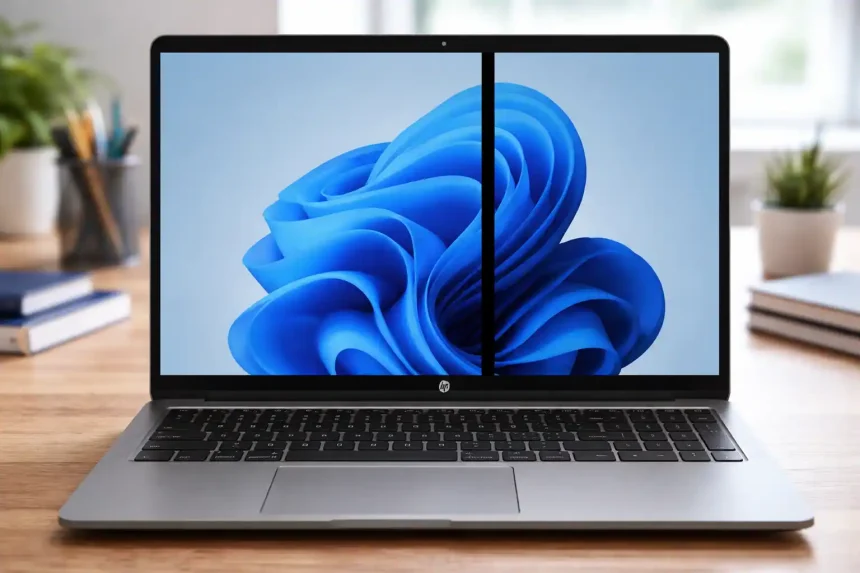
Seeing a stubborn black line on your HP laptop screen? Don’t panic. In most cases, it’s fixable—sometimes in minutes. Below, I’ll walk you through fast checks, deeper diagnostics, and smart repair options so you can decide whether it’s a quick tweak, a parts swap, or time to call support.
What That Black Line Really Means
A black line (vertical or horizontal) usually points to one of three buckets:
- Temporary software hiccup: Graphics driver glitches, stuck processes, or display settings gone weird.
- Connection issue: A loose or damaged display cable (eDP/LVDS) between the motherboard and panel.
- Panel hardware fault: Dead pixel column/row, T‑CON failure, or panel damage from pressure or liquid.
Quick ways to tell software vs hardware
- Screenshot test: Take a screenshot (Win + Shift + S or PrtSc). If the line shows up in the image when opened on another device, it’s software. If not, it’s likely hardware.
- External monitor test: Connect to an external display (HDMI/USB‑C). If the line is only on the laptop screen, suspect cable or panel. If it appears on both, think driver or GPU.
Fast Fixes You Can Try First
1) Simple resets
- Power cycle: Shut down, unplug power, and hold Power for 15 seconds. Reboot.
- Reset display pipeline: Press Win + Ctrl + Shift + B to restart the graphics driver.
- Toggle resolution/refresh: Settings > System > Display > Advanced display. Switch to a different refresh rate and back.
2) Update or roll back graphics drivers
- Windows Update first: Settings > Windows Update > Check for updates.
- Device Manager: Display adapters > your GPU > Update driver. If the issue started after an update, choose Roll Back Driver.
- HP Support Assistant: Use HP’s tool to pull vendor‑tested graphics, BIOS, and firmware updates.
3) Clean boot to rule out conflicts
- Open System Configuration (msconfig) > Selective startup > Disable non‑Microsoft services, then reboot. If the line disappears, a third‑party app or overlay is the culprit.
HP‑Specific Checks
Run HP diagnostics
- HP PC Hardware Diagnostics UEFI: On startup, tap Esc, then F2. Run “Display” or “System Extensive Test.” If the line appears in diagnostics, it’s almost certainly hardware.
Inspect physical connections (if you’re comfortable)
- Power off, disconnect battery (if accessible), and carefully reseat the display cable at the motherboard and panel ends. Look for kinks near the hinge—common stress points on clamshells.
- Check for panel pressure marks: Any prior impact, tight backpack, or palm pressure near the bezel can kill a pixel column.
When It’s the Panel vs. the Cable
Signs it’s the cable (cheaper fix)
- The line flickers, changes with lid angle, or appears after opening/closing.
- You see additional symptoms like brief snow, color shifts, or half‑screen dropout.
Signs it’s the panel (replace the screen)
- The line is perfectly straight and static, same thickness, and always in the same place.
- Multiple fixed lines or a bar with no color even during boot logos and BIOS screens.
Safe DIY Options
Try a pixel refresh/unstick routine (for faint lines)
- Use a pixel‑flashing tool at full screen for 10–15 minutes. This only helps if the issue is a stuck pixel band, not a dead driver IC.
Reseat or replace the display cable
- Look up your exact HP model (e.g., 15‑dwxxxx). Order the correct eDP cable. Carefully route it through the hinge channel; avoid sharp bends. This fix often costs the least and solves intermittent lines.
Replace the LCD panel
- Match by panel model (on the panel’s back label) for connector position, resolution, refresh, and mounting tabs. Typical 13–15.6‑inch FHD IPS panels are widely available. If your HP uses touch, ensure the digitizer layer matches.
Professional Repair and Warranty Paths
Check warranty/HP Care Pack
- If the laptop is within standard warranty or has Care Pack coverage, contact HP Support. Black lines from manufacturing defects are usually covered; impact/liquid damage is not.
Typical repair costs (rough guide)
- Cable reseat/replace: low cost
- FHD non‑touch panel: moderate cost
- Touch or high‑refresh/4K panel: higher cost
If labor plus parts approaches 40–50% of your laptop’s value, consider a full device upgrade instead.
Prevent It From Coming Back
Handle and carry smart
- Avoid lifting by the display corner. Use a protective sleeve; don’t cram it in tight bags that press on the lid.
Keep hinges healthy
- Don’t snap the lid shut. If hinges feel stiff or click, service them—stiff hinges stress the cable.
Thermal and firmware hygiene
- Keep vents clear, dust out. Update BIOS/graphics periodically to prevent display pipeline bugs.
FAQ
Is a single black vertical line always the panel?
Not always. If the line reacts to lid movement, suspect the cable first. A stable, unchanging line across all screens (BIOS, boot, Windows) usually means the panel.
Will a factory reset fix it?
Only if the root cause is software. Try drivers, safe mode, and external monitor tests before drastic resets.
Can I keep using the laptop like this?
Yes, if the line is small and stable. But hardware issues can worsen, so back up data and plan a fix.
Bottom Line
Start with quick software checks, then isolate with a screenshot and external monitor. If hardware is at fault, the cable is the cheapest bet; the panel is the final step. And if you’re under warranty, let HP handle it—I’m all for easy wins.