Apple Music offers over 100 million songs, but there’s a catch that frustrates millions of subscribers: you don’t actually own the music you download. The songs come in protected M4P format, locked to Apple’s ecosystem. This means you can’t transfer them to a non-Apple MP3 player, burn them to a CD, or keep them if your subscription lapses.
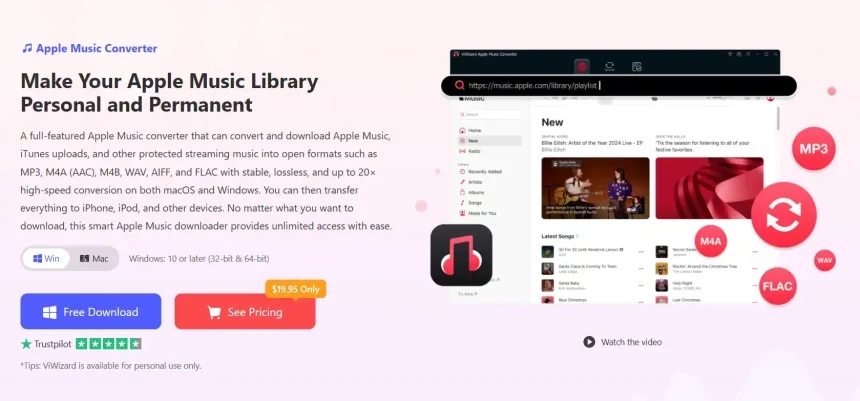
If you want true ownership of your Apple Music library, you need a dedicated converter. ViWizard Apple Music Converter is designed specifically to solve this problem, allowing you to download and convert Apple Music songs to universally compatible formats like MP3, FLAC, and WAV.
Why You Need More Than Apple’s Native Download
Apple’s built-in download feature is convenient for offline listening within the Apple Music app. You tap the download button, and the song saves to your device. However, these downloads are wrapped in Apple’s FairPlay DRM. They only play inside Apple Music and are tied to an active subscription.
This creates real limitations. You can’t use your music with DJ software, video editing tools, or a standard MP3 player. You can’t create a permanent backup. And if you ever cancel your subscription, your downloaded library becomes unplayable.
How ViWizard Solves This Problem
ViWizard Apple Music Converter works differently. It integrates with the Apple Music Web Player and your local library to download and convert tracks, effectively removing the DRM protection during the conversion process. The result is a clean audio file in a format you choose—with no restrictions.
The converter supports a wide range of output formats, including MP3, M4A, M4B, WAV, AIFF, and FLAC. You can choose the format that matches your needs, whether that’s maximum compatibility (MP3) or lossless quality (FLAC).
Key Features That Make ViWizard Stand Out
Flexible Output Quality: For casual listening, MP3 at up to 320 Kbps delivers excellent quality in a universally compatible format. For audiophiles, ViWizard can preserve lossless and high-resolution audio, supporting up to 320 Kbps bit rate, 48,000 Hz sample rate, and 24-bit depth.
Batch Conversion at High Speed: Using multi-thread technology, ViWizard can process entire playlists at up to 20× faster speeds. A 50-track playlist takes just minutes to convert.
Organized Library Management: Unlike basic online converters, ViWizard automatically sorts your converted files by Artist/Album, Playlist/Artist, or other structures. Metadata like title, genre, and album art is preserved, so your library stays clean and navigable.
Built-in Player and Lyrics Support: ViWizard includes both a web player and a local media player. You can preview tracks before conversion and even view lyrics files, making it easy to sing along with your favorite songs.
How to Download Apple Music Songs with ViWizard
The process is straightforward and you just follow:
Step 1. Install ViWizard Apple Music Converter
Download and install ViWizard Apple Music Converter on your Windows PC or Mac. Launch the program after installation and sign in with your Apple Music account through the built-in web player.
After signing in, you can access your Apple Music library and browse songs, albums, and playlists.
Step 2. Choose an Output Format
Open the Preferences menu and select the format you want to use.
For general compatibility, MP3 is a practical choice because it works with most phones, computers, music players, and car audio systems. If you prefer a lossless format, you can choose options such as FLAC or WAV instead.
ViWizard also lets you adjust settings such as bitrate, sample rate, channel, and other output parameters, giving you more control over the resulting files.
Step 3. Select Apple Music Songs
Return to the built-in Apple Music Web Player and find the songs you want to download. You can select individual tracks or add entire albums and playlists.
Click Add Music to place your selections into the conversion list. ViWizard supports batch processing, which means you can handle multiple songs instead of converting every track individually.
Step 4. Download and Convert Apple Music Songs
Check the conversion list to make sure you’ve selected the right tracks. When everything is ready, click Convert.
ViWizard will process the selected Apple Music content and save the resulting audio files to your chosen output folder. Depending on your settings, the files can be saved as MP3, FLAC, WAV, M4A, or other supported formats.
When the process is finished, open the History section and click the folder icon to locate your downloaded songs.
Final Thoughts
The Apple Music app is the simplest option if you only need temporary offline listening within Apple’s ecosystem. However, if you want to download Apple Music songs as MP3, FLAC, WAV, or other local audio files, a desktop tool such as ViWizard Apple Music Converter provides a more flexible way to manage your collection.
With support for songs, albums, and playlists, multiple output formats, batch conversion, and metadata preservation, it can help you build a more organized personal music library on Windows or Mac.