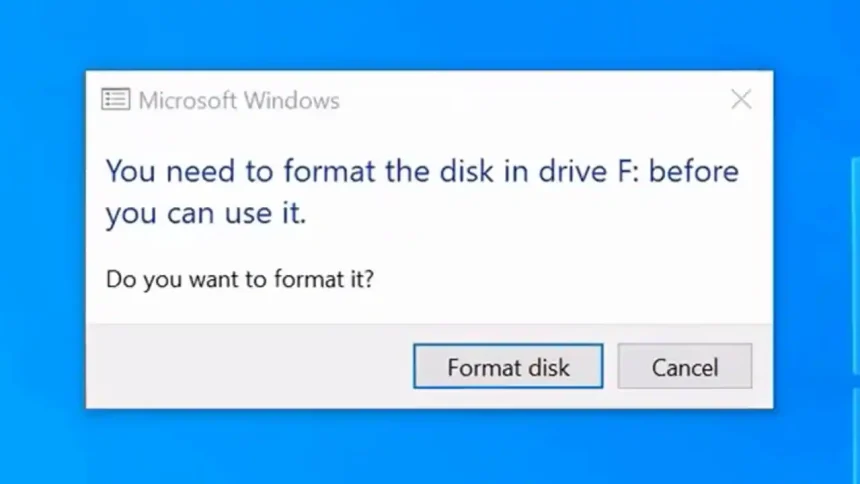
You attach your external drive to your computer to transfer some files, only to get slapped with the ‘you need to format the disk in drive’ error. “The disk was functioning fine a few days ago, so what could have gone wrong,” you wonder.
But there’s no need to worry. This does not necessarily imply that your files are gone. In this post, we’re going to talk over the reasons for this “formatting” malfunction. We’ll also share how you can rescue your data and 8 effective ways to troubleshoot this error.
Part 1: Reasons for “You Need to Format Disk in Drive” Error
There are numerous reasons why you’re facing the ‘you need to format the disk in drive’ error on your external drive, such as the following:
- File system damage can stop Windows from finding files, often showing as RAW.
- Bad sectors or failing hardware can make the drive unreadable.
- An interrupted or failed format can cause errors.
- Windows can’t read some file systems (like APFS or HFS+), so it may ask to format.
- Viruses or malware can break the file system or partitions.
- A broken or missing partition table can block access.
- Loose or malfunctioning cables can cause connection problems.
- Using the same drive letter as another drive may trigger errors.
- Heavy disk fragmentation can also slow or block access.
Part 2: How to Rescue Data From Your Problematic Drive Easily?
Prior to applying the ‘you need to format the disk before using it’ fix, you must first rescue your data. This is because the disk is inaccessible due to the error, and employing any solution might overwrite or erase the data permanently.
Thus, you’ll need to utilize a professional data recovery software that can reclaim your crucial files from the inaccessible drive. A credible tool like 4DDiG Data Recovery can rescue files lost due to corruption, formatting, or removal by mistake, etc, with high success from inaccessible/unreadable storage mediums. Here are this tool’s functions at a glance:
- This app can restore files lost from malware, missing partitions, crashes, or boot failures.
- The tool supports almost all storage devices, including hard drives, SD cards, USBs, cameras, drones, etc.
- This software can reclaim 2000+ file types, including photos, RAW files, videos, documents, and music.
- No technical background required.
- A free version is available for Windows users.
Follow the steps beneath to rescue data from an external drive like a USB with ‘you need to format the disk’ error with this tool:
Step 1: Connect your external disk, which tells you that the disk needs to be formatted before use. Then, install and execute the file recovery software on your computer.
Step 2: Select the disk. Then, pick the file types to reclaim. Hit “Scan.”
Step 3: Pause or stop the scan once you find the files you need. Preview them by their path and type. You can also adjust filter tags or input keywords in the search field to find exact matches.
Step 4: Select the files you wish to reclaim. Then, hit “Recover” to export them to your computer or cloud drive.
Part 3: Methods to Fix “You Need to the Format Disk in Drive” Error
After you’ve successfully rescued your data, let’s proceed to applying the ‘you need to format the disk before using it’ fix. Here are 8 solutions:
Way 1: Reboot Your Computer
Rebooting your computer can troubleshoot the ‘you need to format the disk before using it’ error. It can clear temporary glitches, reload drivers, and stop conflicting processes. This helps the system recognize the drive properly again. Follow the instructions beneath to reboot your computer:
Step 1: Save all your processes. Then, close the apps. Next, click the “Start Menu.”
Step 2: Tap the “Power” icon. Hit “Restart.”
Way 2: Reconnect the Affected Drive
Reconnect your external disk like the SD card, with ‘you need to format the disk’ malfunction. This can troubleshoot the error by guaranteeing a stable connection, using a working port or cable, so the system can detect it properly.
Way 3: Use the Scan and Repair Feature
Windows offers an in-built “Scan and Repair” feature, the System File Checker (SFC), to replace corrupted or missing system files. These might be leading to the ‘you need to format the disk before using it’ error. Here’s how to execute the SFC scan:
Step 1: Connect your problematic external disk to your computer. Input “cmd” in the “Windows search” field on the Desktop. Next, execute “Command Prompt.”
Step 2: Type the following command. Hit “Enter” afterward:
- sfc /scannow
Way 4: Reinstall Disk Driver
Reinstalling the disk driver might fix the ‘disk needs to be formatted before use’ glitch if it’s because of corrupted, outdated, or incompatible drivers, and resolving conflicts. This allows the system to properly communicate with the disk. Here’s how to reinstall the disk driver:
Step 1: Connect your problematic external disk to your computer. Right-click the “Start Menu.” Next, execute “Device Manager.”
Step 2: Double-tap “Disk drives.” This will be expand it. Right-click your external disk, like SD card with ‘you need to format the disk’ error. Then, select “Uninstall device.” Tap “Uninstall.”
Step 3: Reboot your computer. Then, reconnect the external disk. The system will automatically reinstall the disk driver.
Way 5: Assign a Drive Letter
Assigning a drive letter might troubleshoot the ‘you need to format the disk before using it’ error if it’s a result of a conflict with another drive letter. This will let Windows properly recognize and access the drive. Here’s how:
Step 1: Connect the external drive, like USB with ‘you need to format the disk’ error to your computer. Then, right-click the “Start Menu.”
Step 2: Execute “Disk Management.” Right-click the problematic disk. Next, select “Change Drive Letter or Paths.” Hit “Add.”
Step 3: Pick a letter for the disk from the drop-down. After this, tick mark the “Assign the following drive letter.” Hit “OK.”
Way 6: Run the Hardware & Devices Troubleshooter
To correct the ‘disk needs to be formatted before use’ glitch, you can employ a Windows-incorporated utility such as the Hardware and Devices Troubleshooter. It can automatically resolve hardware, driver, or device conflicts and identify them in a simple guided process in case they’re the ones causing this malfunction. Here’s how to execute the Hardware and Devices Troubleshooter:
Step 1: Connect your external disk, like USB with ‘you need to format the disk’ malfunction to your computer.
Step 2: Press the “Win + X” keys. Then, execute “Windows PowerShell (Admin).” Type the following command. Hit “Enter” afterward:
- msdt.exe -id DeviceDiagnostic
Step 3: Click “Next.” Then, follow the on-screen steps to troubleshoot any hardware problems.
Way 7: Run the Error Checking Tool
The Error Checking Tool is another Windows-embedded tool you can use as the ‘you need to format the disk before using it’ fix. It can troubleshoot file system glitches and repair bad sectors if they’re ones behind this malfunction. Here’s how to execute the Error Checking Tool:
Step 1: Connect your problematic external disk to your computer. Open “File Explorer.”
Step 2: Head to “This PC.” Then, right-click the external drive, like the SD card, with ‘you need to format the disk’ error.
Step 3: Select “Properties.” Next, the “Tools” tab. Beneath “Error checking,” click “Check.”
Step 4: Approve if asked. After this, choose “Scan drive.” Wait for the scan to complete. If errors are found, reboot your computer to repair the drive.
Way 8: Send It to a Repair Shop
If you’re unable to troubleshoot the formatting error from your external disk, send it to a repair shop near you. Find a credible service, contact them, get a quote, and if required, ship the disk to them.
Conclusion
The ‘you need to format the disk in drive’ error can manifest because of damage in the file system, bad sectors, driver errors, or connection problems. However, it is important to save your data before subjecting it to a remedy. Try a professional recovery program such as 4DDiG Data Recovery in order to save the data before it is lost forever.
Then you can use the troubleshooting solutions. Restart your computer, reconnect the disk, utilize Windows Embedded repair tools, reinstall drivers, or assign a new drive letter. When nothing appears to do the job, contact a professional repair service.