Your new song comes out next week. You have picked fifteen seconds to share on Instagram or TikTok, but still need a visual for the announcement. The post needs to introduce the track and make the release date easy to find.
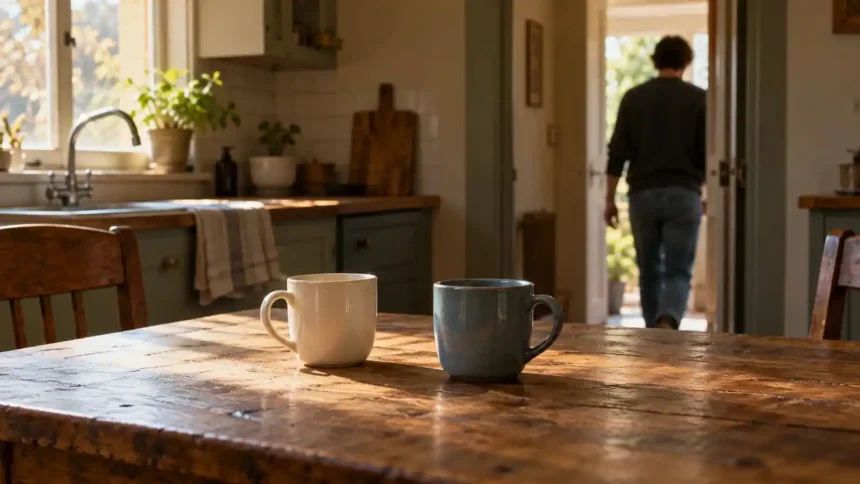
Start with one detail from the lyrics. If a line mentions still making two cups of coffee after someone has left, imagine two cups on a kitchen table as a person walks out of the room. The camera stays behind with the untouched cups.
The Kling 4.0 AI Video Generator on Kling Motion lets you explore that shot using text or a reference image. A short draft gives you a way to check the framing and movement before building the full teaser.
Choose the Lyric and the Musical Moment
Listen to the exact excerpt you plan to post. Decide what you want someone to hear: the first line of the chorus, a particular lyric, or a change in the arrangement.
Then give the picture a place in that excerpt. In the coffee scene, the person could leave just before the chorus. Holding on the cups afterwards gives the listener time to connect the image with the words.
You do not need to explain the whole song in fifteen seconds. One location and one clear action give you enough to work with.
Build the Scene in Kling Motion
If you already have a suitable photo, select References and upload it to guide the setting. Use material you own or have permission to use. If you are still exploring the look, select Text and describe the scene.
For the coffee example, try:
Fixed shot of two ceramic cups on a small kitchen table in soft morning light. In the background, an adult walks slowly out of the room. Both cups remain still and visible in the foreground. Hold on the quiet room after the person leaves. One continuous shot, no dialogue or on-screen text.
Choose 9:16 for a vertical post and begin with a five-second draft to check the composition and action. Review the available settings and displayed credit cost before generating.
Watch whether the person leaves naturally and the cups stay consistent. If the background movement draws too much attention, make it smaller or slower. Adjust one instruction at a time.
Once the scene works, choose a duration that suits your edit or cut from the short shot to your cover artwork. The finished teaser does not need a new visual for every beat.
Match the Picture to the Track
Bring the usable clip into your editor, mute any generated audio, and add your song excerpt. Move the video until the departure falls near your chosen musical moment. Handle precise timing in the edit rather than expecting the prompt to follow the song automatically.
Watch the pause after the person leaves. If it feels rushed, hold the shot longer before cutting to the artwork. If it drags, trim it. Let the music help you make that decision.
Add your artist name, song title, and release date as editable text. Keep the final card on screen long enough to read, and preview on your phone to check that platform controls will not cover important details.
Try one lyric-led shot in Kling Motion with the song you are about to release. Play the draft with your original audio and check whether the action fits the lyric and lands naturally with the music.