Why Use a PS5 Controller on Windows and macOS
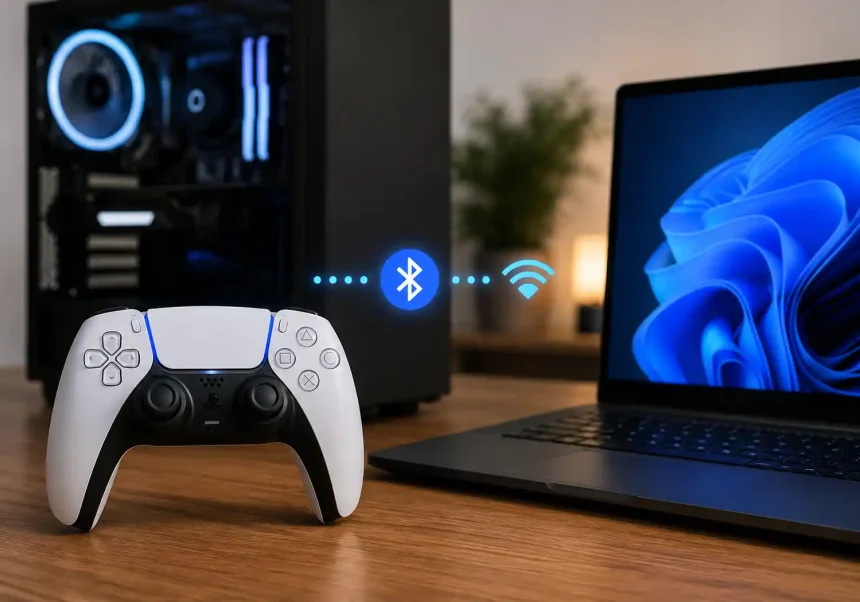
The DualSense is precise, comfortable, and packed with features. On PC, it delivers accurate sticks and triggers, excellent battery life, and wide game support through Steam, Epic, and other launchers. Whether you prefer plug‑and‑play simplicity or lag‑free Bluetooth, you can tailor the setup to match your games and workflow.
Quick Answer: The Fastest Way to Start
- Prefer zero setup? Use a USB‑C cable. It’s instant and the most reliable.
- Want couch gaming? Pair via Bluetooth in under a minute.
- Using Steam? Most games “just work” once the controller is detected.
- Non‑Steam games? Add them to Steam or configure in‑game settings.
Connection Methods at a Glance
Wired (USB‑C)
- Best for: Competitive play, zero latency, quick charging
- Works with: Windows 10/11, macOS 12+, Steam Big Picture, most launchers
- Bonus: No Bluetooth conflicts, haptic features supported in select titles
Wireless (Bluetooth)
- Best for: Sofa play, cable‑free desks, portable rigs
- Works with: Laptops/desktops with Bluetooth 4.0+
- Notes: Slight latency vs. wired, battery management needed
Method 1: Connect via USB‑C (Wired)
What you need
- PS5 DualSense controller
- USB‑C to USB‑A or USB‑C to USB‑C cable
- Windows 10/11 or macOS 12+
Steps on Windows
- Plug the cable into your PC and the controller.
- Windows will auto‑install drivers. Wait a few seconds.
- Open Steam > Settings > Controller > Controller Settings and confirm “PlayStation Configuration Support.”
- Launch a game and test inputs in the controller layout screen.
Steps on macOS
- Connect the cable to your Mac and controller.
- macOS recognizes DualSense automatically.
- In Steam, enable PlayStation support in Settings > Controller.
- Verify button inputs in Big Picture Mode or in‑game.
Pros and cons
- Pros: Lowest input lag, stable connection, charges while playing
- Cons: Tethered movement, cable management required
Method 2: Connect via Bluetooth (Wireless)
What you need
- PC with Bluetooth 4.0+ or USB Bluetooth dongle
- PS5 DualSense controller (charged)
- Windows 10/11 or macOS 12+
Pairing on Windows
- Press and hold PS + Create (small button next to D‑pad) until the light bar flashes rapidly.
- On your PC: Settings > Bluetooth & devices > Add device > Bluetooth.
- Select “Wireless Controller.” If asked for a PIN, enter 0000.
- Wait for “Connected” status. The light bar becomes solid.
Pairing on macOS
- Hold PS + Create until the light bar flashes.
- Apple menu > System Settings > Bluetooth.
- Choose “DualSense Wireless Controller” > Connect.
- Confirm in Game Controllers or Steam settings.
Pros and cons
- Pros: Freedom of movement, clean desk setup
- Cons: Slight latency, potential interference, battery to manage
Optimize for Steam, Epic, and Other Launchers
Steam (best compatibility)
- Enable PlayStation Configuration Support in Settings > Controller.
- Per‑game layouts: Right‑click a game > Properties > Controller to choose “Enable Steam Input.”
- In Big Picture Mode, remap buttons, create radial menus, and fine‑tune stick sensitivity.
Epic Games, GOG, Ubisoft Connect, EA app
- Many games support DualSense natively.
- If a title doesn’t recognize the pad, add the game to Steam as a Non‑Steam Game to leverage Steam Input.
- Alternative: Use in‑game control options to switch to “Gamepad” or “Controller.”
Advanced Features: What Works on PC
Haptics and adaptive triggers
- Supported in select PC titles (mostly via Steam or developer integrations).
- Not every game exposes full DualSense effects; expect basic rumble in many cases.
Motion controls and touchpad
- Motion is available in some Steam Input profiles and games.
- Touchpad often works as a button or as a mouse in Steam; behavior varies by game.
Mic, speaker, and light bar
- Mic and speaker support is limited on PC.
- Light bar functions mainly for status feedback.
Troubleshooting: Fix Common Pairing and Input Issues
Not detected over USB
- Try a different cable (use a data‑capable cable, not charge‑only).
- Plug into a USB 3.0/USB‑C port directly on the PC, not a low‑power hub.
- Update Windows/macOS and Steam.
Bluetooth won’t pair
- Toggle Bluetooth off/on, then remove “Wireless Controller” and pair again.
- Fully power‑cycle the controller: hold PS for ~10 seconds.
- Reset the controller with the pinhole button on the back (near L2) for 5 seconds, then retry.
- Reduce interference: move Wi‑Fi routers or 2.4 GHz devices farther away.
Inputs feel laggy
- Use wired for competitive titles.
- On Windows, disable “Metered connection” and close background Bluetooth devices.
- In Steam, lower gyro smoothing and adjust deadzones.
The game shows Xbox buttons
- That’s normal on many PC games. Functionality is identical; prompts differ.
- In Steam, enable PlayStation button prompts where available.
Smart Tips for a Better Experience
Battery and charging
- Over Bluetooth, expect 8–12 hours per charge depending on haptics.
- Lower light bar brightness in Steam Input to save battery.
- Keep a USB‑C cable nearby for quick top‑ups.
Profiles for different genres
- Create per‑game profiles in Steam: adjust trigger curves for racers, gyro for shooters, and deadzones for platformers.
Use it outside games
- Map the touchpad to mouse and create shortcuts for media control in Steam Desktop mode.
Frequently Asked Questions
Does DualSense work with non‑Steam games?
Yes. Many recognize it natively. If not, add the game to Steam to use Steam Input or try the launcher’s own controller settings.
Can I connect multiple controllers?
Yes. Pair more DualSense pads the same way. In Steam, assign Player 1/2/3 under Controller settings.
Is a dongle better than built‑in Bluetooth?
Often yes. A quality USB Bluetooth 5.0 dongle can reduce interference and improve range compared with older laptop radios.
Final Call: Wired vs Wireless—Which Should You Choose?
- Choose wired if you want the lowest latency, guaranteed compatibility, and charging while playing.
- Choose wireless if you value freedom, clean setups, and couch comfort.
Either way, the process is quick, and the DualSense excels on PC once you enable PlayStation support where needed.