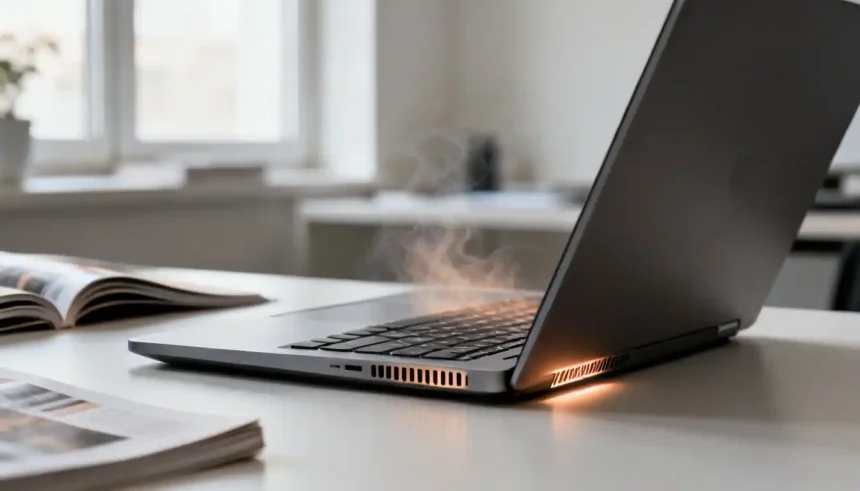
A laptop that runs a little warm under heavy use is completely normal. Laptops pack powerful components into a slim body, and generating some heat is simply part of how they work. But there is a big difference between a warm laptop and one that feels genuinely hot to the touch, runs its fan constantly, or becomes uncomfortable to use.
If you have found yourself wondering why is my laptop overheating, you are not alone. Laptop overheating can have several causes, from blocked air vents and dust buildup to demanding software and aging cooling components. In many cases, the problem can be improved with a few simple changes.
This guide explains the most common reasons a laptop overheats, the safe steps you can take to cool it down, and the situations where professional help may be necessary.
Why Is My Laptop Overheating?
There is rarely a single answer to this question. In general, a laptop gets hot when its components are producing more heat than the cooling system can effectively remove.
Below are some of the most common causes of laptop overheating.
Blocked or Dirty Air Vents
Every laptop relies on ventilation to move heat away from its internal components. If the vents are covered or clogged, hot air cannot escape efficiently. As a result, internal temperatures can rise even during relatively light tasks.
Placement is a common problem. Resting a laptop on a bed, cushion, blanket, or other soft surface can block ventilation underneath the machine. Within a short time, restricted airflow can make the laptop noticeably hotter.
Dust Buildup
Over time, dust and pet hair can enter a laptop and collect around the fans and cooling fins. This buildup can restrict airflow and reduce the cooling system’s ability to move heat away from the processor and other components.
If a laptop that previously ran relatively cool has gradually started getting hotter, dust buildup may be one possible explanation.
Too Many Background Programs
Some laptops get hot even when you are not running a demanding application. Background software may be using the processor without you realising it.
Apps that launch automatically, browser tabs, system processes, cloud synchronisation, and software updates can all contribute to CPU activity. If your fan becomes loud shortly after startup, checking background processes is a sensible first step.
Heavy Gaming or Demanding Applications
Gaming, video editing, 3D rendering and other demanding workloads can place substantial demands on a laptop’s CPU and GPU. Higher component temperatures are therefore expected during intensive use.
A laptop that becomes warm during demanding work and cools down once the workload ends may simply be operating under a heavy load. However, frequent shutdowns, severe performance drops, or persistent excessive heat deserve further attention.
Poor Airflow or Soft Surfaces
Even clean vents cannot work properly if airflow is restricted.
Using a laptop on a soft or uneven surface can block intake vents. Placing it in a tight space can also make it harder for hot air to escape. If you use a laptop with an external monitor while keeping the lid closed, check the manufacturer’s guidance because cooling behaviour varies between models.
High Room Temperature
Laptop cooling also depends on the temperature of the surrounding air. In a hot room, the cooling system has less opportunity to transfer heat away from the internal components.
This can be especially noticeable during warm weather or in rooms with poor ventilation. Moving the laptop to a cooler, well-ventilated area can sometimes make a noticeable difference.
Outdated Software or Drivers
Software problems can sometimes contribute to increased heat.
Drivers, particularly graphics drivers, can affect how efficiently hardware operates. Operating system and driver updates may also include performance, compatibility, or power-management improvements.
Keeping Windows, macOS, and relevant hardware drivers updated is therefore a sensible part of regular laptop maintenance.
Malware or Unwanted Processes
Unwanted software can run in the background and consume processor resources. In some cases, malicious software may use significant CPU resources without the user knowing it.
If a laptop is unusually hot, slow, and noisy even when it should be idle, check which applications and processes are using system resources. Running an appropriate security scan can also help rule out unwanted software.
Aging Cooling Components
Laptop cooling components can become less effective as a device gets older.
Fans can accumulate dust or develop mechanical problems, while thermal interface material between a processor and its heatsink can degrade over time. How quickly this happens varies depending on the laptop, its design, environment, and usage.
If an older laptop continues to run unusually hot despite clean vents and sensible software management, professional servicing may be worth considering.
Battery or Other Hardware Problems
A battery can produce some heat during charging and normal operation, but unusual or concentrated heat around the battery area can indicate a problem.
Other hardware faults can also contribute to unexpected temperatures. If the laptop case is bulging, the battery appears swollen, or you notice an unusual smell, stop using the device and seek professional assistance.
How to Stop a Laptop From Overheating
Many overheating problems can be improved with a few safe and straightforward changes. Start with the simplest steps before considering internal repairs.
Move It to a Hard, Flat Surface
Use your laptop on a hard, stable surface such as a desk or table whenever possible.
This helps keep ventilation openings clear and allows air to move more freely. If you need to use the laptop in bed or on your lap, a suitable hard laptop tray or lap desk can provide a better surface.
Keep the Ventilation Areas Clear
Locate the laptop’s ventilation openings, which may be positioned underneath, along the sides, or near the hinge.
Make sure they are not covered by papers, clothing, cables, or other objects. Keeping some open space around the vents can help the cooling system work more effectively.
Close Unnecessary Applications
If several demanding applications are running at the same time, close the ones you are not using.
On Windows, Task Manager can show which applications are consuming significant system resources. On a Mac, Activity Monitor provides similar information.
Reducing unnecessary workloads can lower processor activity and, in turn, reduce heat.
Check CPU Usage
High CPU usage can be a useful clue when investigating overheating.
On Windows, press Ctrl + Shift + Esc to open Task Manager and look at CPU usage under the Processes section.
On macOS, open Activity Monitor and review the CPU information.
If an application is consistently consuming substantial resources without an obvious reason, closing it may help. If you do not recognise a process, avoid deleting or disabling system files without first checking what the process does.
Install Software and Driver Updates
Keep your operating system and important drivers updated.
Graphics drivers can be particularly relevant for laptops used for gaming, video editing, or other graphics-intensive work. Regular updates can also address bugs and compatibility issues that may affect system performance.
Keep the Laptop and Surrounding Area Clean
Regularly clean the outside of your laptop and keep the area around it reasonably dust-free.
For external vents, use appropriate cleaning methods recommended by the laptop manufacturer. If using compressed air, follow the manufacturer’s guidance rather than forcing air aggressively into the machine.
Internal cleaning may require opening the laptop, so consider professional servicing if you are not experienced with laptop hardware.
Avoid Excessive Heat Exposure
Avoid leaving a laptop in direct sunlight, inside a hot car, or next to a radiator or other heat source.
Using it in a reasonably cool and well-ventilated environment gives the cooling system a better chance of keeping temperatures under control.
Use Appropriate Cooling Solutions
A laptop cooling pad can be useful for people who regularly run demanding workloads such as gaming or video editing.
Cooling pads can improve airflow underneath compatible laptops, although their effectiveness varies between devices. If you use one, make sure its fans and airflow openings are positioned appropriately for your laptop’s ventilation design.
How to Check What Is Making Your Laptop Hot
Finding the source of excessive heat often starts with identifying which applications or components are working hardest.
On Windows, open Task Manager and sort the Processes section by CPU usage. Watch the list for a short period rather than judging it from a single moment.
A game, video editor, or other demanding application showing high usage may be completely expected. However, an unfamiliar application consuming significant resources while the laptop is supposed to be idle deserves further investigation.
On macOS, Activity Monitor provides similar information. Its CPU section can help identify applications that are using substantial processing resources.
Some third-party monitoring applications can also display CPU and GPU temperatures. However, temperature readings vary considerably between laptop models, processors, workloads, and room temperatures. There is no single temperature that can be considered normal for every laptop.
Instead of focusing on one number, look for patterns. If the laptop becomes extremely hot during light use, repeatedly reaches unusually high temperatures, or experiences performance problems and shutdowns, further investigation may be necessary.
When Is Laptop Overheating a Serious Problem?
Some warmth is normal, particularly during demanding workloads. However, certain signs suggest that the issue should not be ignored.
Take action if you notice:
- The laptop shuts down or restarts unexpectedly, particularly under load
- Performance drops significantly when the machine becomes hot
- The fan produces grinding, rattling, or other unusual noises
- The battery area appears swollen or the laptop case begins to bulge
- You notice a burning or unusual chemical smell
- The laptop becomes excessively hot during ordinary use
- Overheating continues despite basic cleaning and software troubleshooting
A swollen battery or burning smell requires particular caution. If either occurs, turn the laptop off, disconnect it from power, stop using it, and seek qualified professional assistance.
As a general rule, internal laptop repairs should not be attempted unless you have the appropriate knowledge and tools. Opening a laptop may also affect warranty coverage on some devices, so check the manufacturer’s warranty terms before carrying out internal work.
How to Prevent Laptop Overheating
Preventing overheating is largely about good everyday habits.
Keep your laptop on a hard surface whenever possible and avoid blocking its ventilation openings. Clean the exterior and accessible vents regularly, and keep the machine away from direct sunlight and other heat sources.
Close applications you are not using and restart the laptop occasionally. Keep the operating system and relevant drivers up to date, and pay attention to unusual changes in fan noise, performance, or temperature.
If you regularly use your laptop for gaming, video editing, or other demanding tasks, a compatible cooling pad may be worth considering.
For an older laptop that continues to run hot despite good ventilation and normal software usage, professional cleaning or servicing may help identify whether the cooling system needs attention.
Frequently Asked Questions
Why is my laptop overheating when I’m not doing anything?
This can be caused by background software using system resources. Check Task Manager on Windows or Activity Monitor on macOS to see whether an application or process is keeping the CPU busy. Startup programs, updates, synchronisation services, and unwanted software can all contribute.
Why does my laptop get hot while charging?
Some additional warmth during charging is normal because the battery and charging circuitry generate heat. However, if the laptop becomes unusually hot, particularly around the battery, or the battery appears swollen, stop using it and have the device checked by a qualified professional.
Is it normal for a laptop fan to run constantly?
A fan running during demanding workloads is normal. A fan that runs loudly and continuously during light use may indicate restricted airflow, dust, high background activity, or another issue that needs investigation.
Can dust cause a laptop to overheat?
Yes. Dust can accumulate around fans and cooling components, restricting airflow and reducing cooling efficiency. Regular cleaning of accessible areas can help, while internal cleaning may require professional servicing.
Can overheating damage a laptop?
Modern laptops generally include thermal protections designed to reduce performance or shut the system down when temperatures become excessive. However, repeated or prolonged exposure to excessive heat can contribute to component wear and should not be ignored.
How can I cool down my laptop quickly?
Close demanding applications and move the laptop to a hard, flat surface with clear ventilation. If necessary, shut the laptop down for a while and allow it to cool naturally. Avoid placing ice, extremely cold objects, or liquids near the laptop, as condensation can cause additional damage.
When should I take an overheating laptop to a technician?
Consider professional help if the laptop repeatedly shuts down, remains excessively hot during light use, produces unusual noises or smells, has a swollen battery, or continues overheating after basic troubleshooting. These symptoms can point to an internal hardware or cooling problem.
Final Thoughts
A laptop getting warm during gaming, editing, or other demanding tasks is not necessarily a sign that something is wrong. The bigger concern is persistent or excessive heat, especially when it is accompanied by loud fans, poor performance, unexpected shutdowns, unusual smells, or battery problems.
Start with the basics: use the laptop on a hard surface, keep the vents clear, check which applications are using system resources, and keep your software updated. If the problem continues or you notice a potentially dangerous hardware symptom, professional assistance is the safer option.
Understanding why your laptop is overheating can help you solve simple problems early and recognise when an issue requires more attention.